Apple’s New App Store Header and Search Result Images: What They Are and How to Use Them
Apple’s new product page header and search result assets explained: where they appear, the exact specs, the new Asset Library and how to design them well.
Apple just added 2 new ways for your app to stand out: a product page header and a search result asset. They're the biggest change to how apps are presented on the store in years, and because they're optional, a lot of apps won't use them straight away.
Here's what they are, where they appear, the exact specs, and how I'd approach them.
What's new
Alongside your screenshots and app previews, you can now upload two new kinds of creative asset in App Store Connect. Each can be an image or a short video.
Product page header: a wide 21:9 banner at the very top of your product page, above your app icon, name and screenshots.
Search result asset: a 3:2 image or video that appears next to your app in search results, in place of the usual row of screenshots.
They don't replace your screenshots or previews. They sit alongside them, giving you a bigger, more brand-led space to make a first impression. Apple suggests using them to highlight your brand, promote seasonal offers and show off new content.

Where and when they show
The new assets appear across the App Store on iOS 27 and iPadOS 27 and later: on the product page, in search results and in featured placements. People on older versions will still see your screenshots and previews as before.
If you don't add a search result asset, Apple falls back to your In-App Events, app previews and screenshots, so nothing breaks if you skip it. You'll just miss the extra space.
The specs
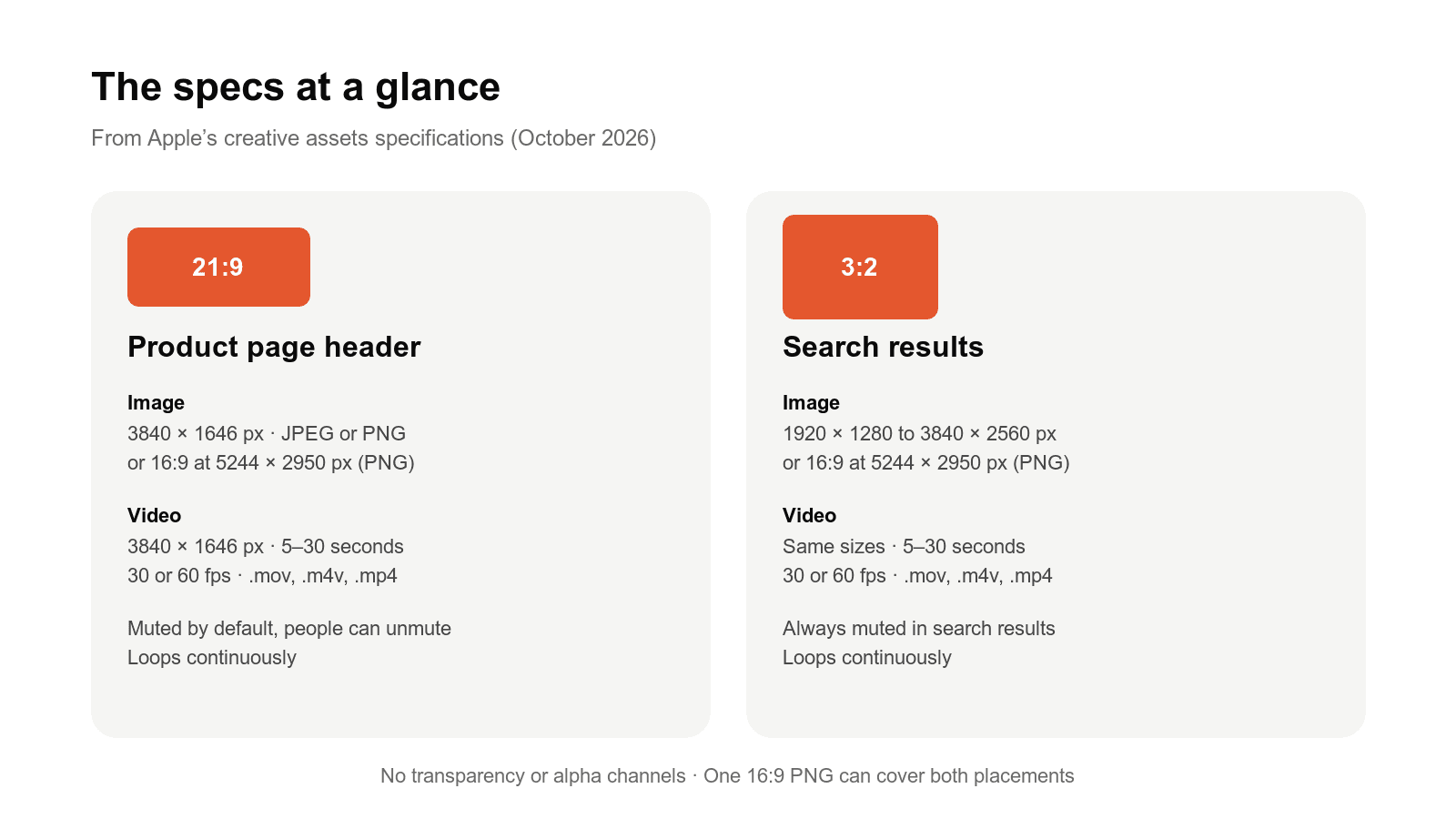
From Apple's creative asset specifications:
Product page header image: 21:9 at 3840 × 1646 px, in JPEG or PNG.
Search result image: 3:2, from 1920 × 1280 up to 3840 × 2560 px, in JPEG or PNG.
One file for both: a 16:9 PNG at 5244 × 2950 px can be used in either placement.
Video: the same aspect ratios, 5 to 30 seconds long, at 30 or 60 fps, as .mov, .m4v or .mp4.
No transparency: images can't include alpha channels.
Videos loop continuously. In search results they're always muted and can't be unmuted. On the product page they start muted, but people can turn the sound on. Design every video to work in silence first.
The Asset Library and review
App Store Connect now has an Asset Library, a central place to upload and organise your creative assets, screenshots and app previews, and reuse them across your product page, Custom Product Pages, Product Page Optimisation tests and In-App Events.
The part I like most is that creative assets can be submitted for review on their own, without an app update. You can get a seasonal campaign approved weeks in advance, then switch it on the day you need it. Standalone assets are reviewed against your app's latest version.
There's also a new preview tool that shows how your header, screenshots and search result will look before you submit, on iPhone and iPad, in different orientations and in Dark Mode.
Designing a good header
The header is shown at different sizes and crops across devices, so the most important rule is to keep your key content in the middle.

Apple's guidance, plus what I'd add from experience:
Keep the focal point central. Leave the edges for background, as they may be cropped on some devices. Always check the preview tool.
One clear idea. A busy header with lots of features crammed in loses impact. Pick one message.
Short text, if any. A brief phrase that adds to the visual, not a description of it, and big enough to read on a phone.
Show the real experience in search. The search result asset should make the app's purpose obvious at a glance: the interface, content or gameplay.
Localise it. If your app supports several languages, localise any text in the assets too.
What to avoid
These assets go through App Review, and Apple is clear about what isn't allowed:
Specific prices, discounts or website URLs.
Logos or references to other platforms or app stores.
Apple recognitions such as Editor's Choice or App of the Day, or any awards you haven't actually won.
Anything unrelated to what the app does.
Content above a 4+ age rating, even if your app is rated higher.
How I'd use them
If you only do one thing, add a search result asset. Search is where most downloads start, and a single bold image that explains your app instantly will stand out against rows of near-identical screenshots, especially while most apps haven't adopted it yet.
Then use the header for your brand, and rotate it for moments that matter: a big feature launch, a seasonal update or a new content drop. Because assets can be approved ahead of time, you can plan those campaigns properly rather than tying them to an app release.
With far more apps competing for the same downloads, anything that helps you get noticed in search is worth an afternoon of design time.
Need a hand?
I build and launch iOS, Android and web apps, and handle the App Store side for my clients, from listings and screenshots to review responses. If you'd like help getting your app's store presence right, get in touch.
Sources: Apple Developer, Showcase your apps with new assets on the App Store, Creative assets specifications and App Store asset best practices.
Got an app idea? Let’s build it.
Tell me where your product is today and what needs to happen next. You’ll leave the call with a clear plan, timeline and next steps.